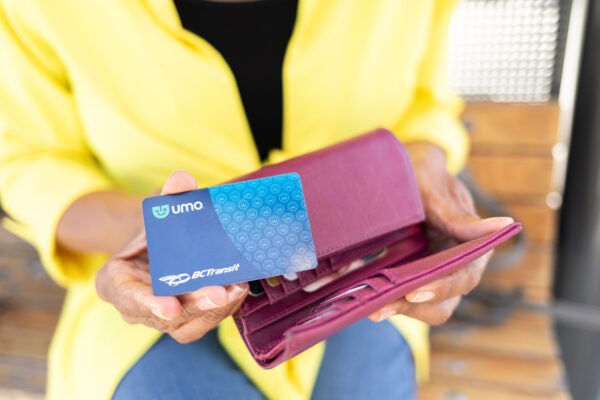
Getting started with Umo
With Umo, you can pre-purchase your fare products or load Umo Cash Balance with the Umo App or Reloadable card before you ride:
Use the app
Download the app to pay your fare and manage your account.
- Download on the App Store
- Get it on Google Play
- Learn more about the Umo app


Use a reloadable card
Pick up a reloadable card for free from a BC Transit vendor.
- Find a vendor
- Sign in at ca.umopass.com
- Learn more about the Umo card
How Umo works
Purchase your fare
You can buy your fare products or load Umo Cash Balance before you board with:
- The Umo app
- In person at a BC Transit retail vendor
- Online at ca.umopass.com
- By calling Umo customer service at 877-380-8181
To check your balance or fare product validity, you can use the app, check online at ca.umopass.com, or call customer support.
Cash balance
Cash Balance lets you pay as you ride. Load at least $5 onto your account to get started.
Each trip deducts your fare automatically.
Visit the How Fares Work page to learn more about paying your fare.
Fare products
Umo products vary by system, offering a range of options to best suit your travel.
Some fare products are only available in person from a BC Transit vendor.
Visit the Fares Products page to see what’s available in your community.
Boarding with Umo
How to pay
When you’re ready to board, have your Umo card ready or the Umo App open.
Here’s how to pay:
- Tap your card or scan the QR code in the app on the onboard reader next to your driver to pay your fare.
- When you see the checkmark, you’re ready to ride.
- You do not need to tap again when you leave the bus.
If you’re using Cash Balance to pay, a digital DayPASS is automatically applied after your second payment of the day, and you can continue to tap or scan for the rest of the day without paying again.
What the reader signals mean
When you tap your card or scan your phone, the onboard reader shows a message so you know your fare status.
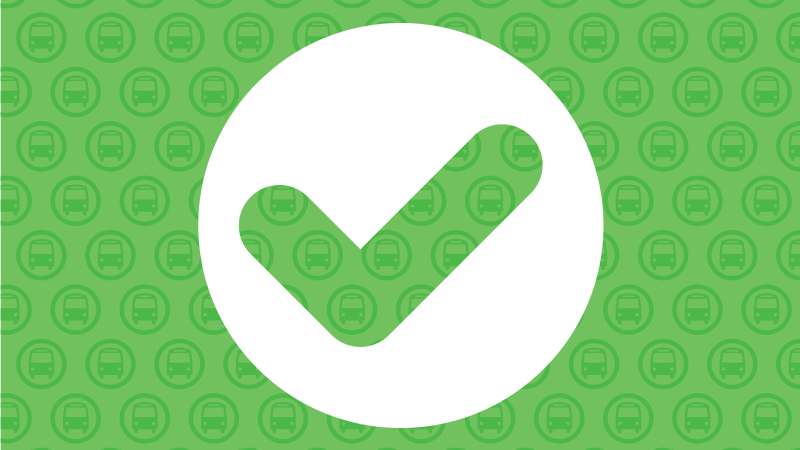
Green check mark
Your fare is accepted and you’re ready to ride.
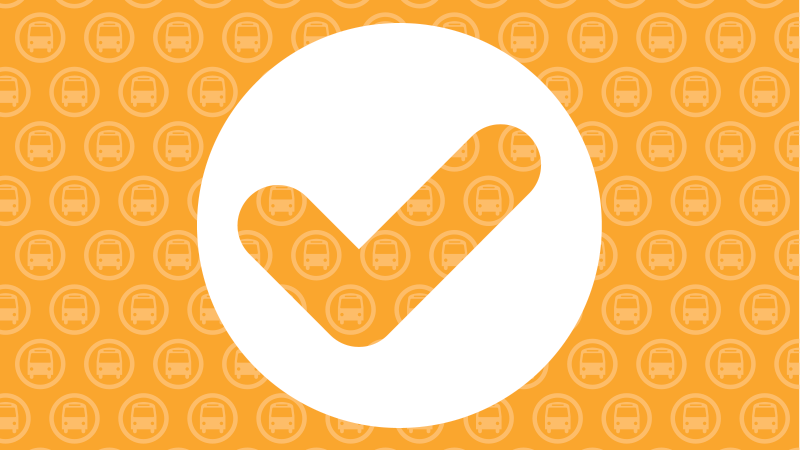
Amber check mark
Your fare is accepted, and your balance is running low or your pass is expiring soon.
Some third-party fare products may also show an amber check mark to confirm your fare was accepted.
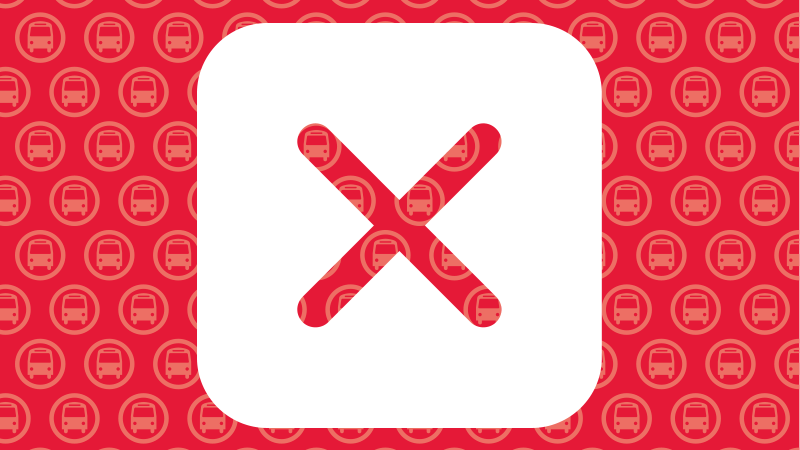
Red X
Your fare wasn’t accepted. This may happen if your fare wasn’t accepted, your balance is low or you don’t have a valid fare product


